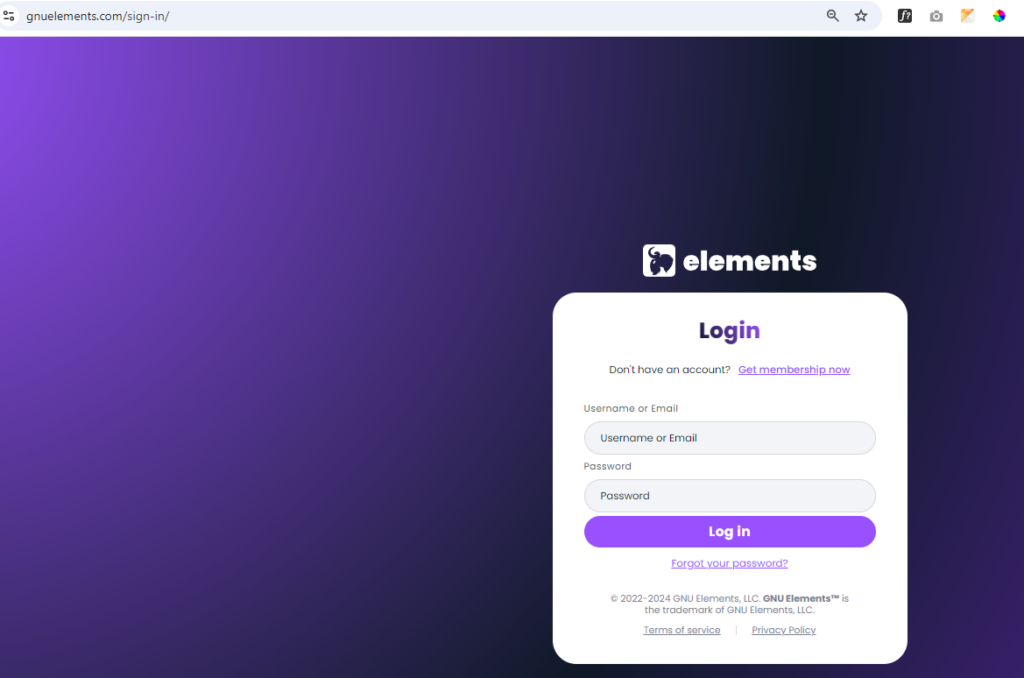
1: Login on the GNU Elements site. https://www.gnuelements.com/sign-in/
Username: ary.azez
Password: Partopia$GNU1
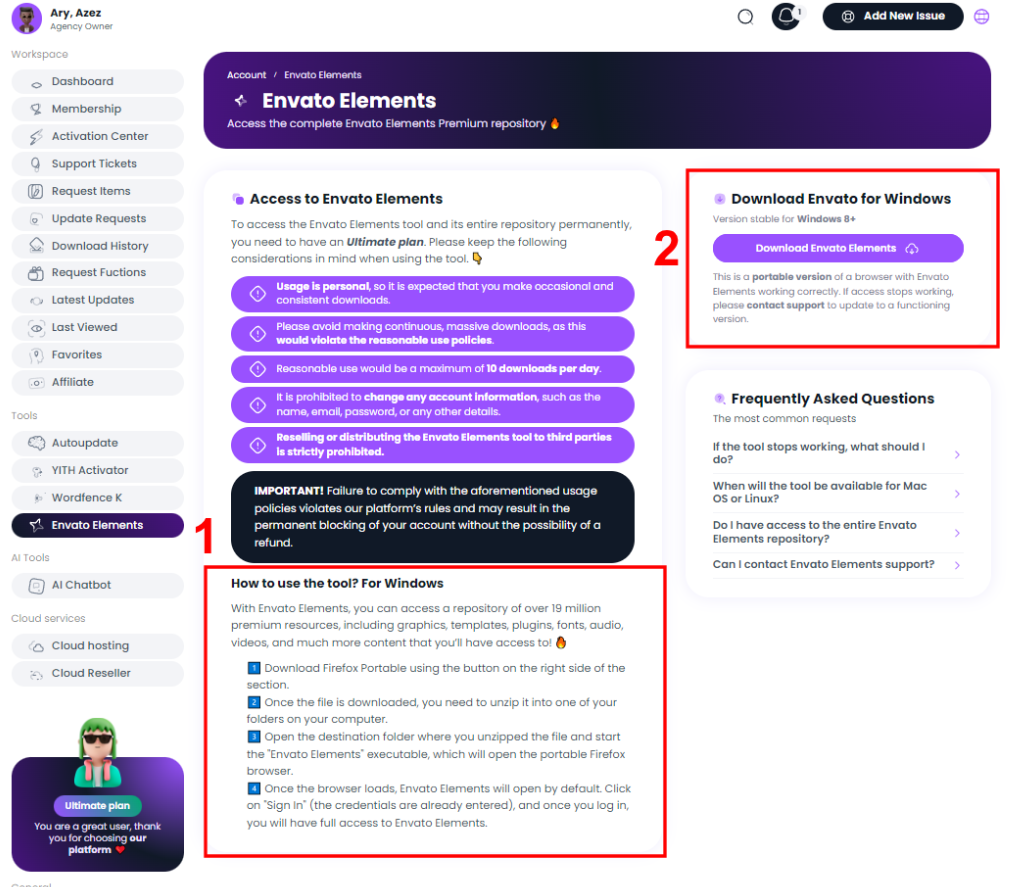
2: Go to Envato Elements under Tools Dashboard

3: Read the instructions for installation and download the Envato Elements on the upper right button.
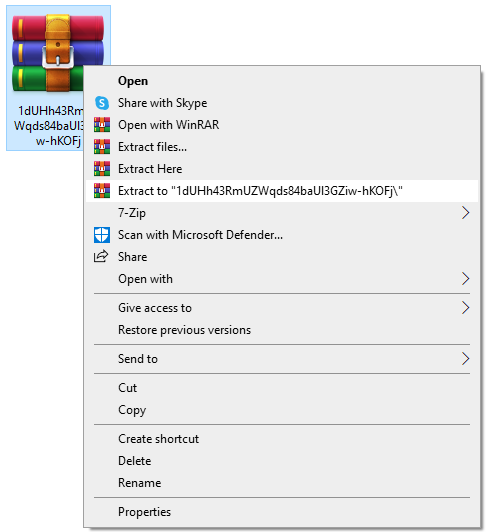
4: Once the download is complete, extract the zip file and wait for it to extract completely.
5: Open the extracted folder and look for the executable file (file name: CLICK HERE FOR OPEN!)
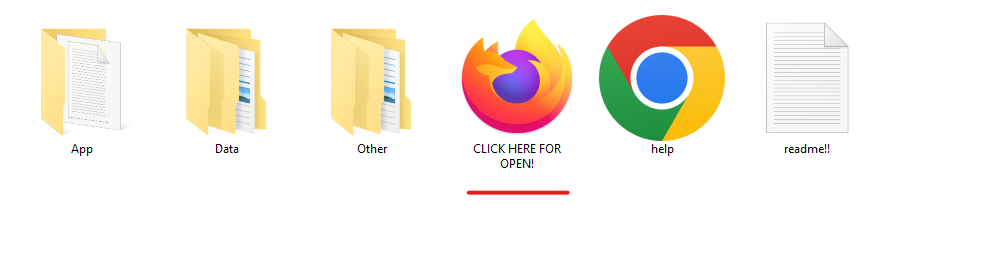
6: Run the executable file to open the Envato Elements Login page.
Note: Ensure that once you run the file, you are redirected to the Envato Elements Login page. If not, download a new zip file and delete the extracted one then re-extract the new downloaded file.

7: On the Envato Elements Login page, proceed to log in using the pre-input credentials by the executable file.
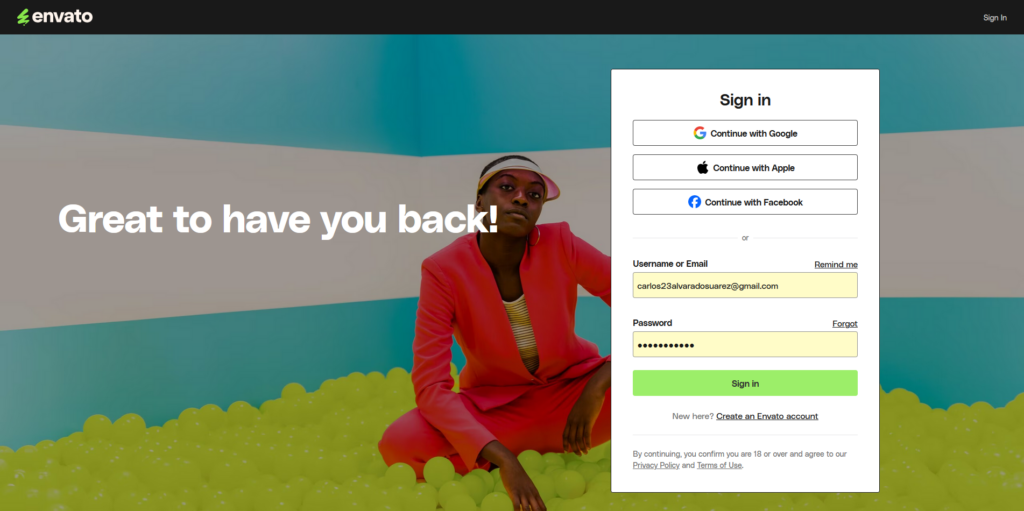
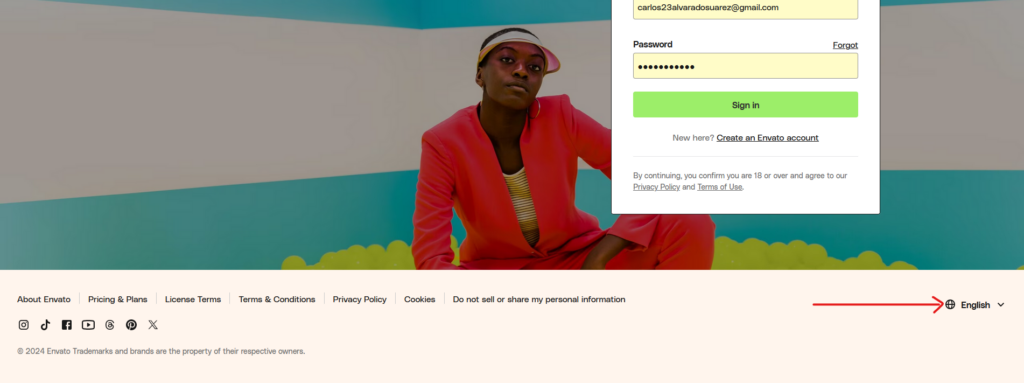
Note: The Default language on the page is Spanish. To translate it, scroll down to the bottom of the page and change it to English for easy use.
8: After the login page, hover over the menu, go to WordPress, and select Template Kit.

9: Select Elementor and Elementor Pro to filter the Elementor Template kit on the sidebar filter.
Note: For an easier way of looking at a template kit, use the search bar at the top and search based on the customer industry you were looking for. (Ex. Book or Author)

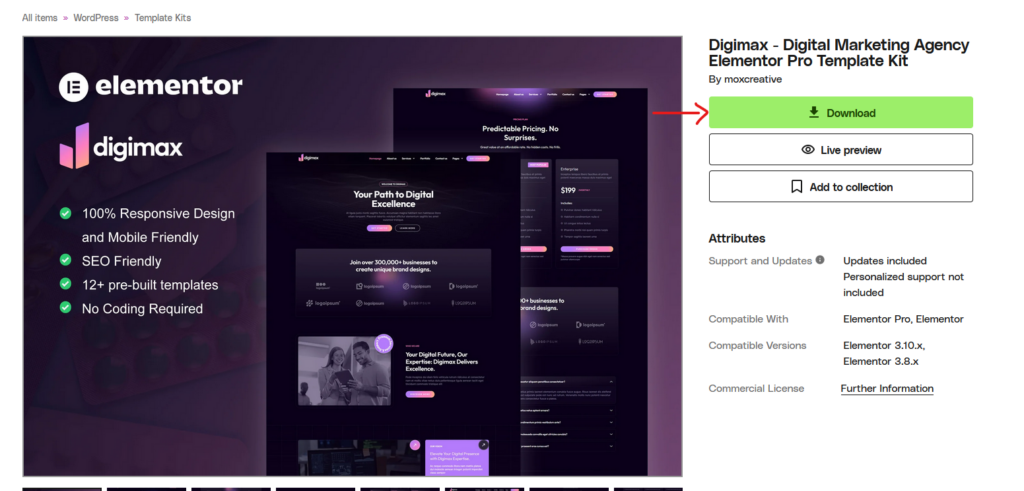
10: Once the template kit is Approved by Ary go to the template kit page and click download.
11: On the popup, scroll down and look for the project “small world”

12: Select smallworld and click add & download. Then, wait for the template kit to download.

Note: After downloading the kit, you may now proceed to import it on a staging site or customer live site using the Template Kit—Import plugin.